RBFS Installation
Overview
RBFS software images are hosted in the RtBrick Image Store, where users can download and install role-specific images on supported hardware platforms. The Image Store provides the latest RBFS releases. For a complete list of supported hardware platforms, see the Supported Platforms section in the Platform Guide.
RBFS is also be delivered as a virtual machine image with limited functionalities for testing purposes. This document does not include information related to RBFS VM image deployments. For information about RBFS VM image deployments, see RBFS VM Image.
RBFS Installation Methods
RBFS supports multiple installation methods to accommodate different deployment requirements. Choose the method that best fits your system environment. You can install RBFS using either following manual installation steps or through Zero Touch Provisioning (ZTP) on a bare-metal switch. ONIE serves as the foundation for initial installation methods and provides a standardized environment for deploying RBFS.
This document provide information about the various RBFS installation methods. At a high level, RBFS supports two installation approaches. ONIE-based installation for initial installation on a bare-metal system, and RBFS-based installation for subsequent installation and upgrade operations. RBFS-based installation methods can be used only if RBFS is already present on the system.
| RBFS supports software reinstallations, upgrades, and other software installation tasks using CLI commands after the initial ONIE-based installation. While the ONIE-based installation methods can technically be used for reinstallations and upgrades, it is recommended to use the RBFS-based methods for their ease of use. |
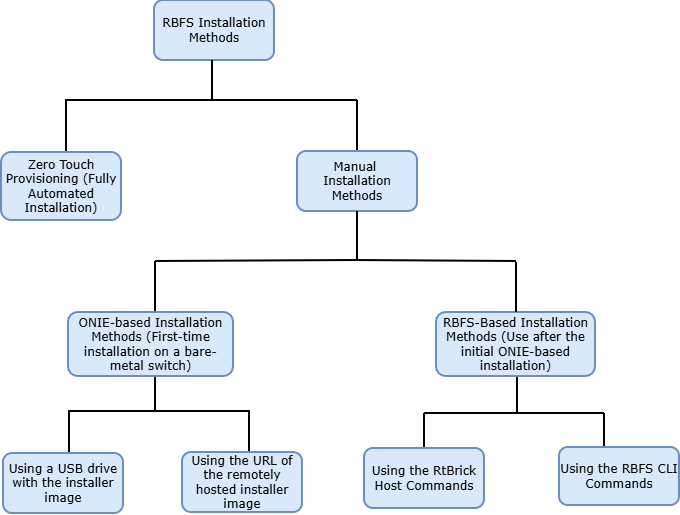
The following diagram provides a high-level overview of the RBFS installation methods.
ONIE-Based Installation Methods
The ONIE-based installation methods include:
Zero Touch Provisioning: This is a fully automated installation method that enables a device to fetch installation instructions and install RBFS without manual intervention. For information on the automated installation process, see section RBFS Automated Installation (Zero Touch Provisioning).
Manual Installation: Manual installation includes two different methods:
-
Using a USB drive with the installer image: Install RBFS using a USB drive containing the RBFS installer image. This method is used when network-based installation is not available. For detailed step-by-step instructions on the installation using a USB thumb drive, see section Installing RBFS Using a USB Thumb Drive.
-
Using the URL of the remotely hosted installer image: Install RBFS by providing an HTTP URL to the RBFS installer image. ONIE downloads the image from the specified URL and installs it on the device. For detailed step-by-step instructions on the installation using the URL of the remotely hosted installer image, see section Using the URL of the remotely hosted installer image.
RBFS-Based Installation Methods
RBFS provides CLI commands for subsequent installation operations and software upgrades after the initial RBFS provisioning. These CLI commands enable installation, upgrades and recovery tasks with minimal impact to the running software. The commands include RtBrick Host system commands and RBFS CLI commands to perform software installation tasks such as downloading images, installing software on the alternate image partition, deleting existing images, and maintaining multiple software versions.
RtBrick Host Commands
You can use the Host system commands to manage RBFS images and boot behavior. These commands allow you to reboot the system using a specific image partition (Image A or Image B), permanently set the default boot target, and control whether the system reboots immediately after changing the boot configuration. The dual-image partition model enables you to install and maintain two different RBFS software versions—one on Image A and another on Image B—allowing safe upgrades, rollbacks, and version testing.
RBFS CLI Commands
You can use a set of CLI commands to manage software images and partitions on the device. These commands enable you to download software images, delete existing images, install software on a specified partition, and mark a partition as the active boot target.
RBFS also provides show commands to display software partition information and track the execution of software management jobs. You can view the list of software partitions and their installed images, monitor real-time job logs, and check the final execution status of software jobs using the show commands.
For information about the CLI commands, see the section RBFS-Based Installation Methods.
Installation Tools and Components
It is essential to familiarize with the following components before beginning the RBFS Image Download process.
Downloading RBFS Image
Before you start the installation process, download the RtBrick Host image. For details on downloading the RtBrick Host image, see the RBFS Image Download section.
RtBrick Image Store
RBFS software images are stored in the RtBrick Image Store and can be downloaded after providing the required certificate.
Image stores containing the Host installer images are published on https://releases.rtbrick.com/ and updated when new image versions are available.
The rtb-image command (CLI tool) provided by the rtbrick-imgstore package is used to interact with "image stores".
| Access to the Image Store and Debian package repositories on https://releases.rtbrick.com/ is secured using mutual TLS (mTLS). Authentication requires a valid TLS client certificate. |
RBFS Host Image
The RBFS software (NOS) available on the RtBrick Image Store is provided as the RBFS Host installer image for installation on qualified OCP-compliant switches.
RtBrick Tools
In addition to RBFS software, other RtBrick software tools are delivered in Debian package format compatible with Debian 12 (Bookworm). The software delivered as Debian 12 packages includes a set of CLI tools and/or daemons designed to facilitate working with RBFS containers and the RBFS API. Debian package repositories containing these packages are available at /https://releases.rtbrick.com/ and are updated whenever a new version becomes available.
Open Network Install Environment
The Open Network Install Environment (ONIE) comes pre-installed on OCP-compliant switches. The ONIE environment is used for installing the RtBrick Host installer image. It provides an environment for installing the RBFS software to run on those switches. For more details about ONIE, see https://opencomputeproject.github.io/onie/.
RBFS Release Versioning
An RBFS release can be defined as a set of software packages (currently, in the Debian package format). However, it is delivered as an image, either a container image or as a complete Host installation image. The Host installation image may or may not contain a container image pre-installed in it. An image can be defined as the archived root file system of a Linux OS installation with the needed software packages pre-installed and with a default configuration. In the current context, the terms 'RBFS release' and 'image' are used interchangeably.
RBFS uses the following versioning format:
<year>.<release>.<minor>[.<fix>][-<label>
Examples:
24.3.1
24.3.1.1
In the version example 24.3.1, the first number, "24," represents the year 2024. The second number, "3," indicates the release version, where "1" corresponds to the first release of the year, and this number will be incremented with each subsequent release. The third number, "1," denotes the minor release, which will also be incremented with each future minor release.
RtBrick also uses a four-number versioning format, represented as 24.3.1.1. In this format, the fourth number indicates the bug-fix release. Bug-fix releases are delivered only when necessary and are based on an existing RBFS release, such as 24.3.1. The bug-fix release numbers will also be incremented with each subsequent minor release.
Candidate releases will use a label such as "candidate.6", which will be incremented with each subsequent candidate release.
Image Formats
RtBrick images delivered through the RtBrick Image Store and the rtb-image utility have the following attributes:
-
format: This is the file format in which the image is packaged and archived. The available format ishost-installer. -
role: The role inside a network of the device which will be running the image. For example,multiservice-edgesignifies the full BNG functionality on a single image. -
platform: Identifies the hardware platform in which the image can run. For example,q2asignifies the switch ASIC Broadcom Qumran-2A. -
model: Identifies the hardware model. For example,s9510-28dcsignifies the hardware model UfiSpace S9510-28DC. -
ver-range: Identifies the image version. For example, 24.8.1 signifies the RBFS release 24.8.1.
RtBrick images intended to be installed on supported hardware devices contain format, platform, and model set accordingly to the specific switching hardware.
You can see this using sudo rtb-image list command and look for the Format column.
|
Image Partitions
An image partition is a dedicated storage area on the device where a specific version of the system software image is installed. RBFS Image partition allows the device to install multiple software images (one RBFS image per partition, for example, Image-A and Image-B). Image Partition provides an isolated environment for installing and operating software images without affecting the active system. It allows to install a new image in a partition, and if the new image fails, the system can rollback to the previous functioning image.
Each partition can boot independently. The system can switch between the partitions, if required.
| The Image Partition feature applies exclusively to RBFS image partitions. It does not apply to other partitions, such as ONIE or boot partitions. |
This image partition layout describes how RBFS organizes the storage into logical partitions, each serving a specific purpose.
| Name | Mount Point | Survives Reinstall | Description |
|---|---|---|---|
RTB-IMAGE-A |
/ (root) |
No |
One of the two bootable partition images. This partition contains the OS files and binaries for Image A. During a reinstall or software upgrade, this partition will be overwritten. |
RTB-IMAGE-B |
/ (root) |
No |
The alternate bootable system image. Similar to IMAGE-A, it holds OS files and is also overwritten during reinstall. The device usually boots into one of these partitions. |
RTB-CONFIG |
/var/config |
Yes |
Stores persistent configuration files such as user settings and system configuration. This partition survives reinstallation and the settings are preserved across upgrades. |
RTB-LOG |
/var/log |
No |
Intended to store system logs. |
RTB-CRASH |
/var/crash |
No |
Stores crash data (core dumps). |
Firmware Upgrade Using Host-Installer
| For details about the firmware version supported by a specific platform, see the Firmware Versions section in the Platform Guide. |
RBFS allows you to perform firmware upgrades directly on the device by executing the CLI commands. RBFS includes the firmware updater files within the host-installer image for each supported device model. It allows you to perform firmware upgrades directly on the device using CLI commands whenever required.
It ensures that device-specific firmware is readily available for reliable upgrades. Since the firmware is already bundled as part of the image, no external components are needed to initiate the upgrade process.
You can perform firmware upgrades directly on the device by executing the CLI commands. The system includes the firmware updater files within the host installer image for each supported device model.
The firmware upgrade is performed using the ONIE firmware package.
| In some cases, platform-level requirements for firmware upgrades may require a complete reinstallation of the RBFS software. It is recommended to schedule these updates within a maintenance window to ensure the environment can be completely restored if needed. |
You must run the following commands on the Host System to locally stage and verify a firmware upgrade using the ONIE firmware package.
-
On the Host system, navigate to the firmware directory using the
cd /var/rtbrick/firmware/command.
Example:
supervisor@host>rtbrick.net:~ $ cd /var/rtbrick/firmware/
-
List and verify the firmware files available in the directory using the
ls -lcommand. Ensure that the firmware updater file (for example,onie-firmware-…updaterandmulti_updater.json) is present in the directory.
Example:
supervisor@host>rtbrick.net:/var/rtbrick/firmware $ ls -l
total 57088
-rwxr--r-- 1 root root      110 Mar 18 17:30 multi_updater.json
-rwxr--r-- 1 root root 58451962 Mar 18 17:30 onie-firmware-x86_64-ufispace_skl_ncplite_series-r0_v3.3.0.updater
-
Stage the firmware update using the command
sudo /mnt/onie-boot/onie/tools/bin/onie-fwpkg add <firmware-updater-file>
Example:
supervisor@host>rtbrick.net:/var/rtbrick/firmware $ sudo /mnt/onie-boot/onie/tools/bin/onie-fwpkg add onie-firmware-x86_64-ufispace_skl_ncplite_series-r0_v3.3.0.updater
[sudo] password for supervisor:
Staging firmware update: onie-firmware-x86_64-ufispace_skl_ncplite_series-r0_v3.3.0.updater
-
Verify the staged firmware using the
sudo /mnt/onie-boot/onie/tools/bin/onie-fwpkgcommand. It displays the current firmware package status, including the staged update. It confirms that the firmware package has been successfully added.
Example:
supervisor@host>rtbrick.net:/var/rtbrick/firmware $ sudo /mnt/onie-boot/onie/tools/bin/onie-fwpkg
** Pending firmware update information:
Name                                                               | Version | Attempts |Size (Bytes)  | Date
===================================================================+=========+==========+==============+====================
onie-firmware-x86_64-ufispace_skl_ncplite_series-r0_v3.3.0.updater | v3.3.0  |        0 |     58451962 | 2026-03-20 04:52:43
===================================================================+=========+==========+==============+====================
For more detailed information, run the onie-fwpkg show-pending <update_name> command.
Example:
** Firmware update results information:
Name                                                               | Version    | Result   | Date
===================================================================+============+==========+====================
onie-firmware-updater                                              | v3.3.0     | Success  | 2025-10-03 17:35:12
onie-firmware-x86_64-ufispace_skl_ncplite_series-r0_v2.2.2.updater | v2.2.2     | Success  | 2023-11-16 09:25:50
onie-updater                                                       | 2020.02v01 | Success  | 2000-01-01 00:01:05
onie-updater-x86_64-ufispace_s9600_72xc-r0_2020.02v01              | 2020.02v01 | Success  | 2000-01-01 00:49:05
===================================================================+============+==========+====================
-
Run the
sudo rtb-reboot updatecommand to trigger the firmware upgrade.
-
Reboot the Host using the
sudo rebootcommand.
-
After reboot, verify the firmware version using the
show firmwarecommand within the container
-
Perform a power-cycle operation after the firmware upgrade. For instructions, see API Endpoint to Perform Power-Cycle Operation.
Installation Guidelines
The following high-level installation guidelines apply to all types of RBFS installations. Perform these steps in the specified order to prepare the system for RBFS deployment.
-
Power-cycle the system: Perform a power-cycle operation before starting the installation. For instructions, see API Endpoint to Perform Power-Cycle Operation.
-
Upgrade the firmware: Upgrade the firmware to the recommended version for the platform. For the supported versions, see Recommended Firmware Versions and to know how to perform firmware upgrade, see Firmware Upgrade Using Host-Installer.
| After upgrading the firmware, you must perform another power-cycle operation before proceeding. |
-
Load the RBFS image: Install the appropriate RBFS image by following the procedure for the applicable installation type.
-
Verify the RBFS license status: After installing RBFS, verify the license status displayed in the system banner to ensure that the license is valid.
Self-Service Portal Sign-Up / Sign-In
RtBrick customers use the self-service portal to request access to the RBFS image download servers and request RBFS licenses. Every user of the Self-Service portal is associated with a specific organization, which is determined by the domain of their company email address. For example, all users with an email address under the domain @rtbrick.com are affiliated with RtBrick. If your email domain is not registered with RtBrick, contact RtBrick Support for assistance.
RtBrick supports a single sign-on (SSO) mechanism that authenticates users across Freshdesk, Self-Service Portal, and auth.rtbrick.com identity management system, forming a unified SSO domain. All users with access to RtBrick services are managed centrally within auth.rtbrick.com.
RtBrick Authentication Method
RtBrick provides its own authentication service with RtBrick Identity Management System through auth.rtbrick.com, allowing you to sign in to the Self-Service Portal using their RtBrick account.
To sign in using an RtBrick account:
-
Open the Self-Service Portal.
-
Select Sign in with RtBrick (or enter RtBrick credentials when prompted). You are redirected to
auth.rtbrick.comfor authentication. -
Enter the RtBrick email address and password. After successful authentication, you are redirected back to the Self-Service Portal.
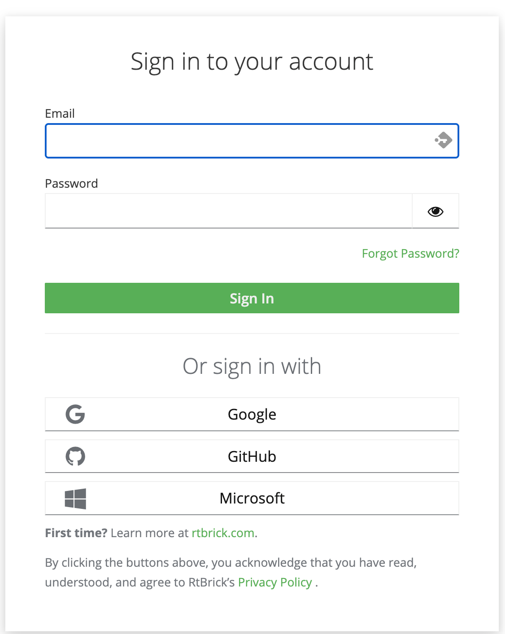
If you do not already have a RtBrick account, click Sign Up on the authentication page and complete the registration process before signing in.
Third Party Authentication Methods
In addition, RtBrick supports third party authentication services. The Self-Service portal uses OpenID/Connect to delegate user authentication to third-party authorization services. These authorization services ensure the secure storage of user credentials and provide additional security measures, including two-factor authentication and account recovery options for users who may have forgotten their passwords.
If you do not have an account with any of the three supported third-party authorization services, create an account with RtBrick’s identity management system using auth.rtbrick.com.
|
The portal supports the following authentication service providers:
-
GitHub
-
Google
-
Microsoft
Selecting Google, GitHub, or Microsoft redirects you to the respective third-party provider to authenticate the credentials.
When a user logs into the portal for the first time, their membership is created. The member will be assigned to an organization based on the domain of their email address. This domain must be a trusted domain, meaning it should be listed in the trusted domains list of exactly one organization.
| Attempts to sign up / sign in to the portal with an email address of an untrusted domain will be rejected. |
GitHub
GitHub allows users to create new accounts for free. A user must declare their company email address as the public email in their GitHub profile to enable the portal to read the email address during the OpenID/Connect authentication process.
| A user cannot sign up / sign in to the portal if the portal is not allowed to read the user’s email address. |
The user must confirm that the portal has permission to access the email address from their user profile for the sign-up process. After the initial sign-up, subsequent logins will not require the user to grant access to their profile again.
Microsoft
Microsoft allows domain administrators to decide which sites can delegate authentication to the Microsoft’s OpenID/Connect authorization services. This adds an additional level of security, because a user can not accidentally share profile data with an untrusted site.
A user will only be prompted for granting the portal access to its profile if the domain administrator has allowed the portal to delegate the login to Microsoft for its organization. In case the portal is not allowed to delegate authentication to Microsoft for the paritcular organization, the user attempting to sign-up to the portal will be prompted to request a domain administrator to grant the portal access to Microsoft authentication services.
In large enterprises with strict security processes granting the portal access to Microsoft authentication service might take a considerable amount of time. An alternative would be to create a GitHub account.
Using the Self-Service Portal
The Self-Service Portal can be used for generating and uploading client certificates. Also, it is required for obtaining new RBFS licenses or extend the existing licenses. For more information, see the Uploading the Certificate to the Self-Service Portal section of the RBFS Image Download Guide and Managing Licenses via Self-Service Portal section of the RBFS Licensing Guide.
rtb-buddy: Simplifying JWKS, JWT, and mTLS Workflows
Overview
rtb-buddy is a command-line tool for the RtBrick Full Stack Network Operating System (RBFS). It generates APIGW and LI X1 cryptographic artifacts without relying on external web pages. The tool streamlines a single CLI workflow for creating JWKS files, signed JWT tokens, and mutual TLS (mTLS) certificates.
Installation
Quick Install
curl -fsSL https://raw.githubusercontent.com/rtbrick/tools/main/install_rtb_buddy.sh | sudo bashThis detects your OS and architecture, downloads the latest release from GitHub, verifies the checksum, and installs rtb-buddy to /usr/local/bin.
Usage
# Generate key pair
rtb-buddy apigw generate jwks

# Issue a token
rtb-buddy apigw generate token --sub alice --name Alice --preferred-username alice --scope supervisor

# Verify a token
echo "<token>" | rtb-buddy apigw inspect token
Shell Completion
# zsh (current session)
source <(rtb-buddy completion zsh)

# zsh (persistent - Linux)
rtb-buddy completion zsh > "${fpath[1]}/_rtb-buddy"

# zsh (persistent - macOS)
rtb-buddy completion zsh > "$(brew --prefix)/share/zsh/site-functions/_rtb-buddy"

# bash
source <(rtb-buddy completion bash)
Commands
apigw
APIGWD related commands.
apigw generate jwks
Generates an RSA key pair as two JWKS files.
-
--priv-key— output path for the private JWKS (default:apigw-jwks-priv.json) -
--pub-key— output path for the public JWKS (default:apigw-jwks.json) -
--kid— key ID for the JWKS entries (default:access)
The private JWKS contains two entries (private key + public key, same KID). The public JWKS contains one entry (public key only, for distribution).
rtb-buddy apigw generate jwks
rtb-buddy apigw generate jwks --kid "prod" --priv-key prod-jwks-priv.json --pub-key prod-jwks.json
apigw generate token
Generates a signed JWT. The private key is read from the JWKS file.
-
--priv-key— private JWKS file path (default:apigw-jwks-priv.json)*--kid— key ID to select from the JWKS (empty = first key) -
--override-kid— override the kid in the JWT header (default: use the JWKS entry’s kid) -
--sub— token subject (required) -
--name— name claim (required) -
--preferred-username— preferred username claim (required) -
--scope— scope claim (default:supervisor) -
--iss— issuer (default:rtbrick) -
--dur— token duration (default:30s)
# Single key in JWKS — --kid not needed
rtb-buddy apigw generate token \
  --sub 1234567890 \
  --name rtbrick \
  --preferred-username rtbrick \
  --scope supervisor

# Multiple keys — select by KID
rtb-buddy apigw generate token \
  --kid "prod" \
  --sub 1234567890 \
  --name rtbrick \
  --preferred-username rtbrick

# Override the kid in the JWT header
rtb-buddy apigw generate token \
  --kid "access" \
  --override-kid "rotated" \
  --sub 1234567890 \
  --name rtbrick \
  --preferred-username rtbrick
apigw inspect token
Decode a JWT from stdin. Verify signature if public JWKS is available. Reports expiration status.
-
--pub-key— public JWKS file path for signature verification (default:apigw-jwks.json) -
--override-kid— override the kid for key lookup in the JWKS
# Verify with matching kid
rtb-buddy apigw generate token --kid access --sub 123 --name admin --preferred-username admin \
  | rtb-buddy apigw inspect token

# Override kid for key lookup (e.g. token has kid "test", JWKS has kid "access")
rtb-buddy apigw generate token --kid access --override-kid test --sub 123 --name admin --preferred-username admin \
  | rtb-buddy apigw inspect token --override-kid access
lix1
LI X1 mTLS certificate management commands for Lawful Intercept.
mTLS Setup
LI X1 uses mutual TLS (mTLS) between ADMF (Administrative Function, the LI management system) and RBFS (network element, the network device).
- CA
-
Trust anchor — issues certificates for all components
- RBFS
-
Server — presents certificate, verifies ADMF clients
- ADMF
-
Client — presents certificate, verifies RBFS server
Generating the CA and certificates
# 1. Generate CA
rtb-buddy lix1 generate ca --cn "LI X1 CA" --org "RtBrick" --ou "Engineering"

# 2. Generate RBFS certificate (server)
rtb-buddy lix1 generate cert --cn "rbfs-router-01" --org "RtBrick" --ou "Engineering" --crt rbfs.crt --crt-key rbfs.key

# 3. Generate ADMF certificate (client)
rtb-buddy lix1 generate cert --cn "admf-prod" --org "RtBrick" --ou "Engineering" --crt admf.crt --crt-key admf.keylix1 generate ca
Generates a root CA certificate and private key.
-
--ca-crt— CA certificate output path (default:ca.crt) -
--ca-crt-key— CA private key output path (default:ca.key) -
--cn— Common Name (required) -
--org— Organization (required) -
--ou— Organizational Unit (required) -
--duration— Certificate validity duration (default:87600h/ 10 years)
rtb-buddy lix1 generate ca --cn "RtBrick LIX1" --org "RtBrick" --ou "Engineering"
rtb-buddy lix1 generate ca --cn "My CA" --org "My Org" --ou "Eng" --ca-crt my-ca.crt --ca-crt-key my-ca.key
lix1 generate cert
Generates a certificate signed by the CA.
-
--ca-crt— CA certificate input path (default:ca.crt) -
--ca-crt-key— CA private key input path (default:ca.key) -
--crt— Certificate output path (required) -
--crt-key— Private key output path (required) -
--cn— Common Name (required) -
--org— Organization (required) -
--ou— Organizational Unit (required) -
--duration— Certificate validity duration (default:87600h/ 10 years)
rtb-buddy lix1 generate cert --cn "Test Device 1" --org "RtBrick" --ou "Testing" --crt device_test_1.crt --crt-key device_test_1.key
rtb-buddy lix1 generate cert --cn "ADMF" --org "RtBrick" --ou "Engineering" --crt admf.crt --crt-key admf.key
rtb-buddy lix1 generate cert --cn "RBFS" --org "RtBrick" --ou "Engineering" --crt rbfs.crt --crt-key rbfs.key
lix1 test cert
Validates the certificate and it’s trust chain.
-
--crt— Certificate to test (required) -
--ca-crt— CA certificate for chain validation (default:ca.crt)
rtb-buddy lix1 test cert --crt device_test_1.crt
rtb-buddy lix1 test cert --crt admf.crt --ca-crt ca.crtSubject: CN=Test Device 1,OU=Testing,O=RtBrick
Issuer: CN=RtBrick LIX1,OU=Engineering,O=RtBrick
Serial: 1658
Signature Algorithm: SHA256-RSA
Not Before: 2026-09-16T17:11:06Z
Not After: 2036-09-13T17:11:06Z
Is CA: false
Status: VALID (expires in 87600h0m0s)
Verifying certificate chain against CA...
Chain verification: OKrbfs
RBFS router management commands.
rbfs config restconf
RESTCONF operations for RBFS routers.
rbfs config restconf get
Get RESTCONF configuration from an RBFS router.
-
--auth-mode— Use HTTPS with JWT authentication (port 12321); default is HTTP (port 19091) -
--element— Element name (defaults to basepath) -
-o, --output— Output file path (default: print to stdout) -
-p, --path— RESTCONF data path (e.g.rtbrick-config:lldp, default: full config) -
--priv-key— Private JWKS file path for token generation (default:apigw-jwks-priv.json) -
--kid— Key ID to select from the JWKS (default:access) -
--sub— Token subject (default:78228339) -
--name— Token name claim (default:rtb-buddy) -
--scope— Token scope (default:supervisor) -
--iss— Token issuer (default:rtbrick) -
--dur— Token duration (default:30s)
# Get full config to stdout
rtb-buddy rbfs config restconf get ufi29.q2c.u35.r3.nbg.rtbrick.net
# Get specific path to stdout
rtb-buddy rbfs config restconf get ufi29.q2c.u35.r3.nbg.rtbrick.net -p rtbrick-config:lldp
# Get specific path to file
rtb-buddy rbfs config restconf get ufi29.q2c.u35.r3.nbg.rtbrick.net -p rtbrick-config:system -o system.json
# HTTPS with JWT
rtb-buddy rbfs config restconf get ufi29.q2c.u35.r3.nbg.rtbrick.net --auth-mode -p rtbrick-config:system
rbfs config restconf put
Put RESTCONF configuration to an RBFS router.
-
--auth-mode— Use HTTPS with JWT authentication (port 12321); default is HTTP (port 19091) -
--element— Element name (defaults to basepath) -
-f, --file— Input file path (default: stdin) -
-p, --path— RESTCONF data path (e.g.rtbrick-config:system) -
--priv-key— Private JWKS file path for token generation (default:apigw-jwks-priv.json) -
--kid— Key ID to select from the JWKS (default:access) -
--sub— Token subject (default:78228339) -
--name— Token name claim (default:rtb-buddy) -
--scope— Token scope (default:supervisor) -
--iss— Token issuer (default:rtbrick) -
--dur— Token duration (default:30s)
# Put config from stdin
cat config.json | rtb-buddy rbfs config restconf put ufi29.q2c.u35.r3.nbg.rtbrick.net -p rtbrick-config:system
# Put config from file
rtb-buddy rbfs config restconf put ufi29.q2c.u35.r3.nbg.rtbrick.net -p rtbrick-config:system -f config.json
# HTTPS with JWT
rtb-buddy rbfs config restconf put ufi29.q2c.u35.r3.nbg.rtbrick.net --auth-mode -p rtbrick-config:system -f config.json